Create & Configure Agents
OpenTrader uses 4 AI agents running inside OpenClaw: coo, tech, ops, finance. Each agent needs its own workspace containing files that define its behaviour and personality.
Step 1 — Create a Telegram bot
Agent coo communicates with boss via Telegram. You need to create a bot before starting the system.
1.1 Create bot with BotFather
- Open Telegram, search for @BotFather
- Send the command
/newbot - Set a display name (e.g.
OpenTrader COO) - Set a username (must end in
bot, e.g.opentrader_coo_bot) - BotFather returns a token like
123456789:AAxxxxxx...— this is yourTELEGRAM_BOT_TOKEN
1.2 Get your Chat ID
The Chat ID is your Telegram identifier — COO uses it to know who is authorised to send commands.
- Send any message to the bot you just created
- Open the following URL in your browser (replace
<TOKEN>with your token):https://api.telegram.org/bot<TOKEN>/getUpdates - Find the field
"chat":{"id":...}in the response — that is yourTELEGRAM_CHAT_ID
1.3 Add to .env
TELEGRAM_BOT_TOKEN=123456789:AAxxxxxx...
TELEGRAM_CHAT_ID=987654321
Step 2 — Configure openclaw.json
Edit openclaw/openclaw.json to wire up the Telegram channel, routing, inter-agent communication, and agent defaults.
2.1 Add Telegram coo account in channels
"channels": {
  "telegram": {
    "accounts": {
      "default": {
        ...
      },
      "coo": {
        "enabled": true,
        "dmPolicy": "pairing",
        "botToken": "123456789:AAxxxxxx...",
        "groupPolicy": "allowlist",
        "streaming": {
          "mode": "partial"
        }
      }
    }
  }
}
The coo account uses the bot token from Step 1. dmPolicy: "pairing" means only paired users can DM the bot.
2.2 Bindings — route inbound chat to agent coo
"bindings": [
  {
    "agentId": "coo",
    "match": {
      "channel": "telegram",
      "accountId": "coo",
      "peer": {
        "kind": "direct",
        "id": "<your-telegram-id>"
      }
    }
  }
]
Any direct message arriving on the coo Telegram account from your Telegram ID → routed to agent coo.
2.3 agentToAgent — allow agents to talk to each other
"tools": {
  "agentToAgent": {
    "enabled": true,
    "allow": ["coo", "tech", "ops", "finance"]
  }
}
Grants agent coo permission to dispatch tasks to tech, ops, and finance — and allows those agents to call each other as needed.
2.4 sessions.visibility — agents see each other’s runs
"tools": {
  "sessions": {
    "visibility": "all"
  }
}
By default an agent can only see its own sessions. Setting visibility: "all" lets every agent see all running sessions in the system — required so that COO can monitor subagent progress and orchestrate correctly.
Why this matters: Without
"all", COO cannot see the result of a spawnedfinanceorscoutrun; it would have to wait blindly. With"all", COO can poll or observe the subagent session directly.
2.5 Note on nested runs and Telegram routing
OpenClaw routing is deterministic — replies always return to the channel the message came from. The model cannot override this.
When an agent uses sessions_send to deliver a message to COO, COO runs in a nested run and text output goes to channel=webchat, not Telegram. This is a fixed architectural constraint.
Solution: Use the message built-in tool instead of text output:
# Get boss chat ID from env
exec: printenv TELEGRAM_CHAT_ID  → [BOSS_ID]

# Send via message tool — bypasses routing, goes directly to Telegram
message(
  channel: "telegram",
  target: [BOSS_ID],
  message: "Content to send to boss"
)
TELEGRAM_CHAT_ID is always available in the container since OpenClaw requires this env var to connect the Telegram channel.
2.5 Agent defaults
"agents": {
  "defaults": {
    "model": "9router/opentrader",
    "subagents": {
      "maxConcurrent": 8,
      "archiveAfterMinutes": 60
    }
  }
}
| Field | Meaning |
|---|---|
model | Default model for any agent that does not declare its own — 9router/opentrader |
subagents.maxConcurrent | Maximum 8 subagent runs allowed concurrently |
subagents.archiveAfterMinutes | Old runs are archived after 60 minutes |
Step 3 — Create workspaces for 5 agents
Each agent needs a workspace — a directory containing behaviour files (AGENTS.md, SOUL.md). OpenClaw reads these files every time an agent starts a session.
Option A — Copy from template (recommended)
The repo already includes complete templates for all 5 agents in openclaw/workspaces/. Just copy them into the mount directory:
# Create mount directory (if not already present)
mkdir -p config workspace

# Copy per-agent workspaces
cp -r openclaw/workspaces/coo     config/workspace-coo
cp -r openclaw/workspaces/finance config/workspace-finance
cp -r openclaw/workspaces/ops     config/workspace-ops
cp -r openclaw/workspaces/tech    config/workspace-tech
cp -r openclaw/workspaces/scout   config/workspace-scout

# Skill for the finance agent (AI confirm + execute)
mkdir -p config/workspace-finance/skills/sniper
cp openclaw/skills/sniper/SKILL.md \
   config/workspace-finance/skills/sniper/
Result inside config/:
config/
├── openclaw.json
├── cron/
│   └── jobs.json
├── workspace-coo/
│   ├── AGENTS.md
│   └── SOUL.md
├── workspace-finance/
│   ├── AGENTS.md
│   ├── SOUL.md
│   └── skills/sniper/SKILL.md
├── workspace-ops/
│   ├── AGENTS.md
│   └── SOUL.md
└── workspace-tech/
    ├── AGENTS.md
    └── SOUL.md
Option B — Create via OpenClaw chat
Once the container is running, you can ask the agent to create the workspace through the chat interface:
“Please create a new workspace named
workspace-techat/home/node/.openclaw/workspace-tech. Create the AGENTS.md and SOUL.md files with the following content: [paste content]”
OpenClaw will create the directory and write the files using its write tool.
Step 4 — Configure SOUL.md and AGENTS.md
This is the most important step — it determines how each agent thinks and acts.
Two file types
| File | Defines | Injected into |
|---|---|---|
SOUL.md | Personality, tone, stance — who the agent is | Main session |
AGENTS.md | Step-by-step procedures, hard rules, output format — what the agent does | Every session (including isolated cron) |
Important:
SOUL.mdis not injected into isolated cron sessions. Therefore all critical rules (timeouts, thresholds, output format) must be inAGENTS.md, notSOUL.md. See: SOUL.md vs AGENTS.md
Agent roles
| Agent | Who they are | What they do |
|---|---|---|
coo | Coordinator — the sole gateway between boss and the system | Receives commands from boss, routes to the right agent, formats results, sends trade alerts |
finance | Trading & risk manager — the final checkpoint before placing orders | AI signal confirmation (EV > 25%, confidence ≥ 8), calls /trade, trailing stop every minute, PnL reports at 21:00, drawdown alerts > 15% |
ops | Operations — infrastructure watchdog | Monitors system health, runs health-check cron, alerts COO on anomalies |
tech | Backend engineer — system maintenance | Code fixes, infrastructure, debugging, backend operations |
scout | Market scanner & intelligence analyst | TA scan every 5 min (ta_trend) and 1 min (ta_mean_revert), sends CUSTOM_FILTER signals to COO; also trending coins, sector rotation, on-demand research via CoinGecko API |
Upload files via OpenClaw chat
Once the container is running, you can update AGENTS.md / SOUL.md content directly via chat without accessing the server:
Example prompt:
“Here are the
AGENTS.mdandSOUL.mdfiles for the finance agent. Please replace the current content in workspace/home/node/.openclaw/workspace-finance:[AGENTS.md] (paste full AGENTS.md content)
[SOUL.md] (paste full SOUL.md content)
After writing, confirm the contents of each file.“
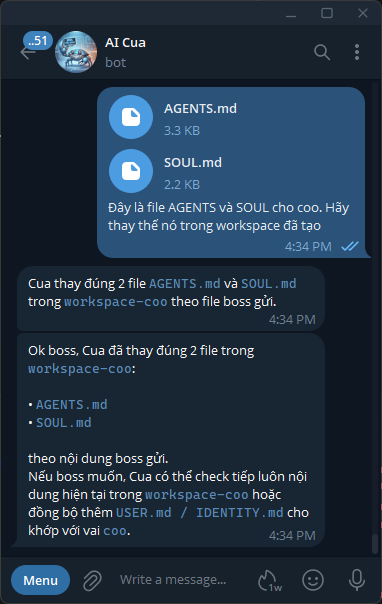
The agent uses its write tool to write directly into the workspace. Changes take effect in the next session — no container restart needed.
Syncing USER.md and IDENTITY.md
OpenClaw automatically creates USER.md (information about the user) and IDENTITY.md (agent self-description) in the workspace after the first session. If they need to reflect the agent’s role:
Example prompt to sync finance:
“Please update
IDENTITY.mdin workspace-finance to match this role: an agent that analyses trading signals and makes confirm/reject decisions based on EV and confidence, executes bracket orders, manages trailing stops, and reports PnL. Receives trade signals only from ops via sessions_send. Tone: cold on entry, steady on protection, honest on reports.”
This helps the agent maintain an accurate self-awareness across sessions.
Step 5 — Editing after deployment
When you need to change an agent’s behaviour:
# Edit local template
nano openclaw/workspaces/finance/AGENTS.md

# Sync into config (mount dir)
cp openclaw/workspaces/finance/AGENTS.md config/workspace-finance/AGENTS.md
Changes take effect in the next new session — OpenClaw re-reads the file every time a session starts, no container restart required.
To edit via chat, use a prompt as shown above — the agent writes directly to the workspace path.
Verification
After completing setup:
# Start the full system
docker compose up -d

# View openclaw logs to confirm agents loaded correct workspaces
docker logs openclaw -f

# Test: send a message to the Telegram bot
# → COO should reply within a few seconds
Check agent status at http://localhost:8000/dashboard.