Introduction
Automated trading bot system on Binance / Hyperliquid Spot, powered by OpenClaw multi-agent.
boss (you)
    │  Telegram
    ▼
  coo               ← Coordinator · Routing · Human-in-the-loop
    ├── finance      ← Trading · AI Confirm · Execute · Risk · PnL · Trailing
    ├── ops          ← Watchdog · Health check · Infra
    ├── tech         ← Backend · System · Bug fixes
    └── scout        ← TA Scan · Signal · Market Intel · Trending · Research
The system runs two parallel loops:
Trading loop (driven by scout, every 5 minutes)
scoutscans the market → detects signalscoosends a checklist to Telegram → boss confirms YES / NO- If YES →
financeperforms a final AI analysis (EV > 25%, confidence ≥ 8) - If criteria met → places a bracket order on-chain (entry + stop-loss + take-profit simultaneously)
cooreports the result back to boss
Protection loop (driven by finance, every 1 minute)
- Moves stop-loss up following price if position is profitable ≥ trigger%
- Alerts immediately if drawdown exceeds 15%
- Sends PnL summary report at 21:00 daily
Boss is the sole decision-maker — the system never trades without confirmation.
| Agent | Role |
|---|---|
coo | Coordinator — communicates with boss via Telegram, routes tasks |
ops | Watchdog, infrastructure health check |
finance | AI signal confirmation (EV > 25%, confidence ≥ 8), order execution, trailing stop, PnL reports, drawdown alerts |
tech | Backend maintenance, system infrastructure, bug fixes |
scout | TA scan & signal generation, market intelligence — trending coins, sector rotation, on-demand coin research |
Prerequisites
- Basic knowledge of Docker + Docker Compose
- VPS with at least 2 GB RAM
- OpenClaw installed in a Docker container — OpenClaw Docker Installation Guide
- Understanding of multi-agent concepts in OpenClaw (see 5 Agents)
License
OpenTrader requires a license key to operate for tracking active users. It is free.
License server
https://otauth.skywirex.com
Add to .env:
LICENSE_SERVER_URL=https://otauth.skywirex.com
Getting a license key
Option 1 — Via Dashboard (recommended)
After docker compose up, open your browser at http://localhost:8000/dashboard.
If no license exists, a setup modal appears automatically:
- Enter your Email and Name
- Click “Get free license key”
- The key is activated and saved to the Docker volume immediately
Option 2 — Via API
curl -X POST http://localhost:8000/license/register \
  -H "Content-Type: application/json" \
  -d '{"email": "[email protected]", "name": "Your Name"}'
Option 3 — Via environment variable (Docker / CI)
If you already have a key, set it in .env — the app activates it automatically on startup:
OPENTRADER_LICENSE_KEY=OT-XXXX-XXXX-XXXX-XXXX
Checking status
curl http://localhost:8000/license/status
{
  "status": "active",
  "plan": "free",
  "features": { "max_positions": 3, "max_watchlist": 10, ... },
  "expires_at": null,
  "validated_at": "2026-04-15T08:00:00+00:00"
}
How it works
| Machine ID | UUID generated on first run, stored at /app/state/machine_id in the Docker volume |
| License cache | Stored at /app/state/license.json — persists across restarts and image rebuilds |
| Re-validation | App calls the license server every 24h to revalidate |
| Offline grace | If the server is unavailable, the app continues running for up to 72h from the last validation |
Delete key
Windows PS
Remove-Item "\app\state\license.json" -ErrorAction SilentlyContinue
Remove-Item "\app\state\machine_id" -ErrorAction SilentlyContinue
Docker
The cache file lives in the Docker volume at /app/state/license.json. Three ways to reset:
Option 1 — Delete cache file only (keeps machine_id)
The app will re-activate with the same key from the env var on next startup.
docker compose exec opentrader rm /app/state/license.json
Option 2 — Delete machine_id too (full reset)
Treated as a “new machine” — a new machine_id is generated, and the old key will no longer bind (a different key is needed).
docker compose exec opentrader rm /app/state/license.json /app/state/machine_id
Option 3 — Delete entire volume (nuclear option)
docker compose down
docker volume rm opentrader_state
If you only want to force re-validate with the server, Option 1 is sufficient.
Binance Testnet API Keys
Getting API Key and Secret Key from Binance Testnet.
Step 1 — Access the correct Testnet platform
Binance splits Testnet into two separate platforms for Spot and Futures:
- Spot Testnet: https://testnet.binance.vision/
- Futures Testnet: https://testnet.binancefuture.com/
Step 2 — Log in
- On the Spot Testnet page (
testnet.binance.vision), click Log in. - Unlike the real exchange, authentication is done via GitHub. Click “Log in with GitHub” and authorize the application.
Step 3 — Generate an API Key
- Once logged in, you will be redirected to the API management page.
- Click Generate HMAC_SHA256 Key (RSA and Ed25519 are also available, but HMAC_SHA256 is the most common standard and easiest to configure for general scripts).
- Enter a description for your key (e.g.
trading-bot-dev) and click Generate.
Step 4 — Store safely
- The system will immediately display your API Key and Secret Key.
- Important: You must copy and save the
Secret Keyright now (recommended: paste it into your.envfile). The platform will never show the Secret Key again after you refresh the page. If you lose it, you will need to delete it and generate a new one. - Your Testnet account is automatically funded with virtual assets (e.g. BNB, BTC, USDT, BUSD) for testing.
Step 5 — Add keys to .env
Open the .env file at the project root (create it from .env.example if it doesn’t exist yet):
cp .env.example .env
Fill in the API Key and Secret Key you just generated:
BINANCE_API_KEY=your_api_key_here
BINANCE_API_SECRET=your_secret_key_here
Then restart the container so the bot picks up the new config:
docker compose restart opentrader-bot
Verify the bot received the keys:
docker exec opentrader-bot env | grep BINANCE
⚠️ Never commit
.envto git. It is already listed in.gitignore— double-check if you forked the repo.
Orchestration Flows
A. Automated trading pipeline (cron every 5 minutes)
Default strategy default_filter — integrated scan with built-in checklist, no separate /custom_check step needed:
┌─────────────────────────────────────────────────────────────────┐
│  CRON  every 5m                                                 │
│   │                                                             │
│   ▼                                                             │
│  scout ──► GET /scan?bot=ta_trend                               │
│   │        strategy="default_filter" (default)                  │
│   │        pandas-ta: VWAP, EMA, RSI range, Volume bull        │
│   │        → returns candidates + checklist + ask_coo           │
│   │                                                             │
│   │  candidates?                                                │
│   ├── NO  → end                                                 │
│   │                                                             │
│   ▼  YES (for each candidate with ask_coo=true)                 │
│  scout ──sessions_send──► coo                                   │
│          (checklist already in scan response)                   │
│                          │                                      │
│                          ▼                                      │
│                    Telegram ──► boss                  │
│                          │    🔍 TRADE SIGNAL                   │
│                          │    ✓/✗ checklist custom filter       │
│                          │    YES or NO?                        │
│                          │                                      │
│                    boss reply (5-minute timeout)                │
│                          │                                      │
│               NO / timeout ──► scout: REJECTED → skip          │
│                          │                                      │
│                         YES ──► scout: CONFIRMED                │
│                          │                                      │
│   ◄──────────────────────┘                                      │
│   │                                                             │
│   ▼                                                             │
│  coo ──sessions_spawn──► finance                                │
│                          │  (signal JSON)                       │
│                          ▼                                      │
│                    AI Confirm (9router)                         │
│                    EV > 25% & confidence ≥ 8?                   │
│                          │                                      │
│               NO ──► finance: confirm=false → end               │
│                          │                                      │
│                         YES                                     │
│                          │                                      │
│                          ▼                                      │
│                  finance ──► POST /trade?symbol=X&...           │
│                          │  (bracket order on-chain)            │
│                          ▼                                      │
│                  finance ──sessions_send──► coo ──► boss        │
│                                            Telegram     │
│                                            🟢 ORDER PLACED      │
└─────────────────────────────────────────────────────────────────┘
When using
strategy = "ta_filter": scout additionally calls/custom_check?symbol=X&direction=Yafter the scan step to retrieve the checklist, then sends it to coo. The rest of the flow is the same.
B. Trailing stop (cron every 1 minute)
CRON every 1m
  │
  ▼
finance ──► GET /trailing
  │
  │  updated.count > 0?
  ├── NO  → ANNOUNCE_SKIP
  │
  └── YES ──sessions_send──► coo ──► Telegram
                                     📈 TRAILING STOP
                                     BTC: SL $X → $Y
C. Health check (cron every 1 hour)
CRON every 1h
  │
  ▼
ops ──► GET /status
  │
  │  anomaly?
  ├── NO  → ANNOUNCE_SKIP
  │
  └── YES ──sessions_send──► coo ──► Telegram
                                     ⚠️ SYSTEM ALERT
D. Daily PnL report (cron 21:00)
CRON 21:00
  │
  ▼
finance ──► GET /status
  │
  ▼
finance ──sessions_send──► coo ──► Telegram
                                   📊 Daily Report
                                   Win/Loss, PnL%
E. Drawdown alert (realtime)
finance (trailing loop)
  │  loss > 15% detected
  ▼
finance ──sessions_send──► coo ──► Telegram
                                   🚨 DRAWDOWN ALERT > 15%
                                   automated trading paused
F. Manual request from boss
boss ──► Telegram ──► coo
                                 │
                          routing table:
                          ┌──────────────────────────┬─────────┐
                          │ trade/AI confirm/execute  │ finance │
                          │ PnL/risk/drawdown/signal  │ finance │
                          │ TA scan/signal            │  scout  │
                          │ health/infra/watchdog     │   ops   │
                          │ backend/code/bug fix      │  tech   │
                          └──────────────────────────┴─────────┘
                                 │
                          sessions_send → agent
                                 │
                          result → coo → format → boss
Cron Schedule
| Job | Schedule | Agent | Description |
|---|---|---|---|
ta_trend_scan | every 5 minutes | scout | Scan + checklist + boss confirm + trade |
ta_mean_revert_scan | every 1 minute | scout | Same flow with mean-revert bot |
trailing_stop | every 1 minute | finance | Move SL up if profit ≥ trigger% |
health_check | every 1 hour | ops | Check exchange connectivity |
daily_pnl | 21:00 daily | finance | End-of-day PnL summary report |
Cron jobs are configured in openclaw/cron/jobs.json (OpenClaw CronStoreFile format), not in openclaw.json or AGENTS.md. Copy to config/cron/jobs.json during setup.
Create & Configure Agents
OpenTrader uses 4 AI agents running inside OpenClaw: coo, tech, ops, finance. Each agent needs its own workspace containing files that define its behaviour and personality.
Step 1 — Create a Telegram bot
Agent coo communicates with boss via Telegram. You need to create a bot before starting the system.
1.1 Create bot with BotFather
- Open Telegram, search for @BotFather
- Send the command
/newbot - Set a display name (e.g.
OpenTrader COO) - Set a username (must end in
bot, e.g.opentrader_coo_bot) - BotFather returns a token like
123456789:AAxxxxxx...— this is yourTELEGRAM_BOT_TOKEN
1.2 Get your Chat ID
The Chat ID is your Telegram identifier — COO uses it to know who is authorised to send commands.
- Send any message to the bot you just created
- Open the following URL in your browser (replace
<TOKEN>with your token):https://api.telegram.org/bot<TOKEN>/getUpdates - Find the field
"chat":{"id":...}in the response — that is yourTELEGRAM_CHAT_ID
1.3 Add to .env
TELEGRAM_BOT_TOKEN=123456789:AAxxxxxx...
TELEGRAM_CHAT_ID=987654321
Step 2 — Configure openclaw.json
Edit openclaw/openclaw.json to wire up the Telegram channel, routing, inter-agent communication, and agent defaults.
2.1 Add Telegram coo account in channels
"channels": {
  "telegram": {
    "accounts": {
      "default": {
        ...
      },
      "coo": {
        "enabled": true,
        "dmPolicy": "pairing",
        "botToken": "123456789:AAxxxxxx...",
        "groupPolicy": "allowlist",
        "streaming": {
          "mode": "partial"
        }
      }
    }
  }
}
The coo account uses the bot token from Step 1. dmPolicy: "pairing" means only paired users can DM the bot.
2.2 Bindings — route inbound chat to agent coo
"bindings": [
  {
    "agentId": "coo",
    "match": {
      "channel": "telegram",
      "accountId": "coo",
      "peer": {
        "kind": "direct",
        "id": "<your-telegram-id>"
      }
    }
  }
]
Any direct message arriving on the coo Telegram account from your Telegram ID → routed to agent coo.
2.3 agentToAgent — allow agents to talk to each other
"tools": {
  "agentToAgent": {
    "enabled": true,
    "allow": ["coo", "tech", "ops", "finance"]
  }
}
Grants agent coo permission to dispatch tasks to tech, ops, and finance — and allows those agents to call each other as needed.
2.4 sessions.visibility — agents see each other’s runs
"tools": {
  "sessions": {
    "visibility": "all"
  }
}
By default an agent can only see its own sessions. Setting visibility: "all" lets every agent see all running sessions in the system — required so that COO can monitor subagent progress and orchestrate correctly.
Why this matters: Without
"all", COO cannot see the result of a spawnedfinanceorscoutrun; it would have to wait blindly. With"all", COO can poll or observe the subagent session directly.
2.5 Note on nested runs and Telegram routing
OpenClaw routing is deterministic — replies always return to the channel the message came from. The model cannot override this.
When an agent uses sessions_send to deliver a message to COO, COO runs in a nested run and text output goes to channel=webchat, not Telegram. This is a fixed architectural constraint.
Solution: Use the message built-in tool instead of text output:
# Get boss chat ID from env
exec: printenv TELEGRAM_CHAT_ID  → [BOSS_ID]

# Send via message tool — bypasses routing, goes directly to Telegram
message(
  channel: "telegram",
  target: [BOSS_ID],
  message: "Content to send to boss"
)
TELEGRAM_CHAT_ID is always available in the container since OpenClaw requires this env var to connect the Telegram channel.
2.5 Agent defaults
"agents": {
  "defaults": {
    "model": "9router/opentrader",
    "subagents": {
      "maxConcurrent": 8,
      "archiveAfterMinutes": 60
    }
  }
}
| Field | Meaning |
|---|---|
model | Default model for any agent that does not declare its own — 9router/opentrader |
subagents.maxConcurrent | Maximum 8 subagent runs allowed concurrently |
subagents.archiveAfterMinutes | Old runs are archived after 60 minutes |
Step 3 — Create workspaces for 5 agents
Each agent needs a workspace — a directory containing behaviour files (AGENTS.md, SOUL.md). OpenClaw reads these files every time an agent starts a session.
Option A — Copy from template (recommended)
The repo already includes complete templates for all 5 agents in openclaw/workspaces/. Just copy them into the mount directory:
# Create mount directory (if not already present)
mkdir -p config workspace

# Copy per-agent workspaces
cp -r openclaw/workspaces/coo     config/workspace-coo
cp -r openclaw/workspaces/finance config/workspace-finance
cp -r openclaw/workspaces/ops     config/workspace-ops
cp -r openclaw/workspaces/tech    config/workspace-tech
cp -r openclaw/workspaces/scout   config/workspace-scout

# Skill for the finance agent (AI confirm + execute)
mkdir -p config/workspace-finance/skills/sniper
cp openclaw/skills/sniper/SKILL.md \
   config/workspace-finance/skills/sniper/
Result inside config/:
config/
├── openclaw.json
├── cron/
│   └── jobs.json
├── workspace-coo/
│   ├── AGENTS.md
│   └── SOUL.md
├── workspace-finance/
│   ├── AGENTS.md
│   ├── SOUL.md
│   └── skills/sniper/SKILL.md
├── workspace-ops/
│   ├── AGENTS.md
│   └── SOUL.md
└── workspace-tech/
    ├── AGENTS.md
    └── SOUL.md
Option B — Create via OpenClaw chat
Once the container is running, you can ask the agent to create the workspace through the chat interface:
“Please create a new workspace named
workspace-techat/home/node/.openclaw/workspace-tech. Create the AGENTS.md and SOUL.md files with the following content: [paste content]”
OpenClaw will create the directory and write the files using its write tool.
Step 4 — Configure SOUL.md and AGENTS.md
This is the most important step — it determines how each agent thinks and acts.
Two file types
| File | Defines | Injected into |
|---|---|---|
SOUL.md | Personality, tone, stance — who the agent is | Main session |
AGENTS.md | Step-by-step procedures, hard rules, output format — what the agent does | Every session (including isolated cron) |
Important:
SOUL.mdis not injected into isolated cron sessions. Therefore all critical rules (timeouts, thresholds, output format) must be inAGENTS.md, notSOUL.md. See: SOUL.md vs AGENTS.md
Agent roles
| Agent | Who they are | What they do |
|---|---|---|
coo | Coordinator — the sole gateway between boss and the system | Receives commands from boss, routes to the right agent, formats results, sends trade alerts |
finance | Trading & risk manager — the final checkpoint before placing orders | AI signal confirmation (EV > 25%, confidence ≥ 8), calls /trade, trailing stop every minute, PnL reports at 21:00, drawdown alerts > 15% |
ops | Operations — infrastructure watchdog | Monitors system health, runs health-check cron, alerts COO on anomalies |
tech | Backend engineer — system maintenance | Code fixes, infrastructure, debugging, backend operations |
scout | Market scanner & intelligence analyst | TA scan every 5 min (ta_trend) and 1 min (ta_mean_revert), sends CUSTOM_FILTER signals to COO; also trending coins, sector rotation, on-demand research via CoinGecko API |
Upload files via OpenClaw chat
Once the container is running, you can update AGENTS.md / SOUL.md content directly via chat without accessing the server:
Example prompt:
“Here are the
AGENTS.mdandSOUL.mdfiles for the finance agent. Please replace the current content in workspace/home/node/.openclaw/workspace-finance:[AGENTS.md] (paste full AGENTS.md content)
[SOUL.md] (paste full SOUL.md content)
After writing, confirm the contents of each file.“
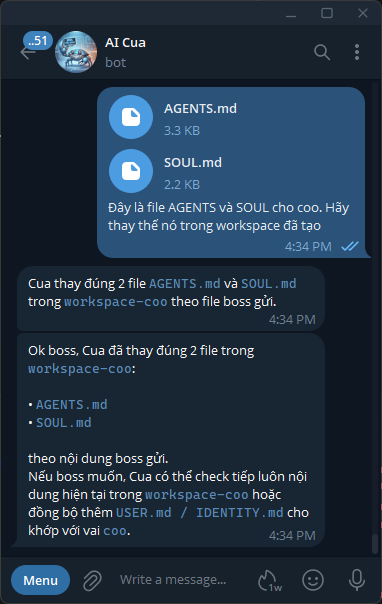
The agent uses its write tool to write directly into the workspace. Changes take effect in the next session — no container restart needed.
Syncing USER.md and IDENTITY.md
OpenClaw automatically creates USER.md (information about the user) and IDENTITY.md (agent self-description) in the workspace after the first session. If they need to reflect the agent’s role:
Example prompt to sync finance:
“Please update
IDENTITY.mdin workspace-finance to match this role: an agent that analyses trading signals and makes confirm/reject decisions based on EV and confidence, executes bracket orders, manages trailing stops, and reports PnL. Receives trade signals only from ops via sessions_send. Tone: cold on entry, steady on protection, honest on reports.”
This helps the agent maintain an accurate self-awareness across sessions.
Step 5 — Editing after deployment
When you need to change an agent’s behaviour:
# Edit local template
nano openclaw/workspaces/finance/AGENTS.md

# Sync into config (mount dir)
cp openclaw/workspaces/finance/AGENTS.md config/workspace-finance/AGENTS.md
Changes take effect in the next new session — OpenClaw re-reads the file every time a session starts, no container restart required.
To edit via chat, use a prompt as shown above — the agent writes directly to the workspace path.
Verification
After completing setup:
# Start the full system
docker compose up -d

# View openclaw logs to confirm agents loaded correct workspaces
docker logs openclaw -f

# Test: send a message to the Telegram bot
# → COO should reply within a few seconds
Check agent status at http://localhost:8000/dashboard.
OpenClaw Installation
See Create & Configure Agents to learn how to create a Telegram bot, set up workspaces, and upload SOUL.md/AGENTS.md before running the commands below.
Step 1 — Copy config into the mount directory
# Create mount directory
mkdir -p config workspace

# Main config (agents, channels)
cp openclaw/openclaw.json config/openclaw.json

# Cron jobs (5 jobs: scan, trailing, health, pnl)
mkdir -p config/cron
cp openclaw/cron/jobs.json config/cron/jobs.json

# Per-agent workspaces
cp -r openclaw/workspaces/coo     config/workspace-coo
cp -r openclaw/workspaces/tech    config/workspace-tech
cp -r openclaw/workspaces/ops     config/workspace-ops
cp -r openclaw/workspaces/finance config/workspace-finance
cp -r openclaw/workspaces/scout   config/workspace-scout

# Skill for the tech agent
mkdir -p config/workspace-tech/skills/sniper
cp openclaw/skills/sniper/SKILL.md \
   config/workspace-tech/skills/sniper/
Step 2 — Fill in tokens in .env
TELEGRAM_BOT_TOKEN=<token from @BotFather>
TELEGRAM_CHAT_ID=<your chat ID>
Step 3 — Start and verify
docker compose up -d

# View openclaw logs — confirm agents loaded correct workspaces
docker logs openclaw -f

# Test: send any message to the Telegram bot
# → COO should reply within a few seconds
Docker Architecture
Three containers run on the same isolated bridge network (openclaw_9router_net):
┌─────────────────────────────────────────────┐
│           openclaw_9router_net              │
│                                             │
│  ┌──────────┐   ┌──────────┐               │
│  │ openclaw │   │ 9router  │               │
│  │ :18789   │   │ :20128   │               │
│  └────┬─────┘   └──────────┘               │
│       │ curl http://opentrader-bot:8000     │
│       ▼                                     │
│  ┌─────────────────┐                        │
│  │  opentrader-bot │  (internal port)       │
│  │  FastAPI :8000  │                        │
│  └─────────────────┘                        │
└─────────────────────────────────────────────┘
OpenClaw agents call the bot via HTTP rather than invoking python3 directly — completely separating the Python runtime from the Node.js container.
Bot API Reference
opentrader-bot exposes an HTTP API on port 8000 (internal Docker network — not publicly accessible).
Base URL (from inside the openclaw container): http://opentrader-bot:8000
Summary
| Section | Endpoints |
|---|---|
| Health | GET /health |
| License | GET /license/status, POST /license/register, POST /license/activate |
| Dashboard | GET /dashboard, POST /api/agent/{name}, GET /api/state |
| News | GET /api/news |
| Portfolio | GET /api/portfolio |
| Bot Actions | GET /scan, POST /trade, GET /custom_check, GET /trailing, GET /status, POST /api/closeall, POST /api/reset-daily |
| Telegram | GET /api/notify |
| Trade Management | GET /api/trades, GET /api/trades/recover, POST /api/trades/restore |
| Signal Flow | POST /api/scan-and-signal, POST /api/signal, GET /api/signal/list, GET /api/signal/pending, GET /api/signal/{symbol}, POST /api/signal/{symbol}/confirm, POST /api/signal/{symbol}/reject, POST /api/signal/cleanup |
Health
GET /health
Health check. Always available, no license required.
Response
{
  "ok": true,
  "license_status": "active",
  "plan": "free",
  "commit": "a1b2c3d"
}
commitis the 7-character git SHA baked in at Docker build time (GIT_COMMITbuild arg). Shows"dev"on local builds.
License
GET /license/status
Returns the current license state of this machine.
Response (active)
{
  "status": "active",
  "plan": "free",
  "features": {},
  "expires_at": null,
  "validated_at": "2026-04-18T10:00:00",
  "machine_id": "abc123"
}
Response (unlicensed)
{
  "status": "unlicensed",
  "plan": null,
  "features": {},
  "message": "Chưa có license. Dùng /license/register hoặc /license/activate."
}
POST /license/register
Register and receive a free license key. The key is automatically activated and saved to /app/state/license.json.
Request body
{ "email": "[email protected]", "name": "Trader Name" }
Response
{
  "ok": true,
  "license_key": "OT-XXXX-XXXX-XXXX-XXXX",
  "plan": "free",
  "message": "License đã được kích hoạt thành công! Bot sẵn sàng hoạt động."
}
POST /license/activate
Activate an existing license key (e.g., after resetting the machine).
Request body
{ "license_key": "OT-XXXX-XXXX-XXXX-XXXX" }
Response
{
  "ok": true,
  "plan": "free",
  "message": "License kích hoạt thành công — plan=free."
}
Dashboard
GET /dashboard
Serves the web dashboard HTML (app/static/dashboard.html).
POST /api/agent/{name}
An agent reports its current status. name must be one of: coo, ops, tech, finance, scout.
Request body
{ "status": "running", "action": "Scan ta_trend" }
status values: idle | running | waiting | error
Response
{ "ok": true }
GET /api/state
Returns the full dashboard state (all agent statuses + activity log). Polled every 3 seconds by the dashboard.
Response
{
  "agents": {
    "coo":     { "status": "idle",    "action": "Chờ lệnh...", "updated": "10:45:02" },
    "ops":     { "status": "idle",    "action": "Chờ lệnh...", "updated": "10:45:02" },
    "tech":    { "status": "running", "action": "Scan ta_trend", "updated": "10:46:01" },
    "finance": { "status": "idle",    "action": "Chờ lệnh...", "updated": "10:45:02" },
    "scout":   { "status": "idle",    "action": "Chờ lệnh...", "updated": "10:45:02" }
  },
  "log": [
    { "time": "10:46:01", "agent": "tech", "action": "Scan ta_trend", "status": "running" }
  ],
  "ts": "10:46:04"
}
News
GET /api/news
Proxy crypto news from RSS sources. Tries each source in sequence and returns the first with valid items. Result is cached for 10 minutes. No license required.
Response (success)
{
  "ok": true,
  "data": [
    { "title": "Bitcoin hits new high", "url": "https://...", "source": "cointelegraph.com" }
  ],
  "cached": false,
  "source": "cointelegraph.com"
}
Response (cached)
{ "ok": true, "data": [...], "cached": true }
Response (all sources failed)
{ "ok": false, "data": [], "error": "cointelegraph.com: timed out | coindesk.com: ..." }
Portfolio
GET /api/portfolio
Fetch current balance from the active exchange. No license required.
Response (success)
{
  "ok": true,
  "balance": 1042.50,
  "currency": "USDT",
  "holdings": [{ "asset": "USDT", "qty": 1042.50, "value": 1042.50, "price": 1.0 }],
  "exchange": "binance",
  "testnet": false
}
Response (error)
{
  "ok": false,
  "balance": null,
  "currency": "—",
  "exchange": "—",
  "error": "Invalid API key"
}
Bot Actions (require license)
All bot endpoints require a valid license. Returns 503 if unlicensed.
The agent query parameter is optional (default shown below) — it controls which agent card on the dashboard reflects the action.
GET /scan
Scan the watchlist using TA indicators. Returns candidates ready to trade.
Query params
| Param | Required | Default | Values |
|---|---|---|---|
bot | yes | — | ta_trend, ta_mean_revert |
agent | no | tech | coo, ops, tech, finance, scout |
Example
curl "http://opentrader-bot:8000/scan?bot=ta_trend"
Response
{
  "status": "ok",
  "exchange": "hyperliquid",
  "testnet": false,
  "bot": "ta_trend",
  "scanned": 12,
  "candidates": [
    { "symbol": "ETHUSDT", "direction": "buy", "score": 6 }
  ],
  "all": [...],
  "trades_today": 1,
  "remaining": 2
}
POST /trade
Place a bracket order (entry + SL + TP) on the active exchange.
Query params
| Param | Required | Description |
|---|---|---|
symbol | yes | e.g. ETHUSDT |
direction | yes | buy or sell |
bot | yes | ta_trend or ta_mean_revert |
sl | yes | Stop-loss % (e.g. 3.0) |
tp | yes | Take-profit % (e.g. 7.0) |
ev | yes | Expected value from Finance AI confirm — must be > 25 |
confidence | yes | Confidence from Finance AI confirm — must be >= 8 |
agent | no | Default: ops |
Both ev and confidence are validated server-side. Returns 422 if either threshold is not met — the trade is blocked regardless of what the agent intended.
Example
curl -X POST "http://opentrader-bot:8000/trade?symbol=ETHUSDT&direction=buy&bot=ta_trend&sl=3.0&tp=7.0&ev=32.5&confidence=8"
Response
{
  "symbol": "ETHUSDT",
  "direction": "buy",
  "bot": "ta_trend",
  "size": 0.05,
  "entry_px": 2450.5,
  "sl_px": 2377.0,
  "tp_px": 2622.0,
  "sl_pct": 3.0,
  "tp_pct": 7.0,
  "sl_placed": "ok",
  "tp_placed": "ok",
  "date": "2026-04-18"
}
GET /custom_check
Run custom indicator checks on a specific symbol and direction. Returns a checklist used by Finance AI to confirm before trading.
Query params
| Param | Required | Description |
|---|---|---|
symbol | yes | e.g. ETHUSDT |
direction | yes | buy or sell |
bot | yes | ta_trend or ta_mean_revert |
agent | no | Default: tech |
Example
curl "http://opentrader-bot:8000/custom_check?symbol=ETHUSDT&direction=buy&bot=ta_trend"
Response
{
  "symbol": "ETHUSDT",
  "direction": "buy",
  "bot": "ta_trend",
  "signal": "buy",
  "passed": 5,
  "total": 7,
  "checklist": [
    { "name": "RSI", "pass": true, "detail": "RSI=42 < 50" },
    { "name": "MACD", "pass": true, "detail": "bullish crossover" }
  ]
}
GET /trailing
Update trailing stop-loss for all open positions based on current price.
Query params
| Param | Required | Default |
|---|---|---|
agent | no | tech |
Example
curl "http://opentrader-bot:8000/trailing"
Response
{
  "updated": [
    { "symbol": "ETHUSDT", "old_sl": 2377.0, "new_sl": 2410.0, "profit_pct": 2.5 }
  ]
}
GET /status
Returns today’s trade count, consecutive losses, recent trades, and bot config.
Query params
| Param | Required | Default |
|---|---|---|
agent | no | coo |
Example
curl "http://opentrader-bot:8000/status"
Response
{
  "exchange": "hyperliquid",
  "testnet": false,
  "trades_today": 1,
  "consecutive_losses": 0,
  "recent_trades": [...],
  "config": { "max_trades": 3, "sl_pct": 3.0, "tp_pct": 7.0 }
}
POST /api/closeall
Cancel all SL/TP orders and close all open positions at market. Positions successfully closed are removed from state.
Query params
| Param | Required | Default |
|---|---|---|
agent | no | ops |
Example
curl -X POST "http://opentrader-bot:8000/api/closeall?agent=ops"
Response
{
  "status": "ok",
  "count": 2,
  "closed": [
    { "symbol": "ETHUSDT", "status": "closed", "size": 0.05 },
    { "symbol": "BTCUSDT", "status": "closed", "size": 0.001 }
  ]
}
If a position fails to close, it remains in state with "status": "error":
{ "symbol": "SOLUSDT", "status": "error", "error": "Insufficient balance" }
Hyperliquid: closes via IOC limit order at ±5% slippage.
Binance: cancels OCO pair then places MARKET order.
POST /api/reset-daily
Reset the trades_today counter to 0, allowing the bot to place new trades within the same day. Existing open positions and state are preserved — trailing stop continues to work normally.
Example
curl -X POST "http://opentrader-bot:8000/api/reset-daily"
Response
{ "ok": true, "trades_today_before": 3, "trades_today_after": 0 }
Use this when the daily limit has been reached but you want to allow additional trades (e.g., after manually closing positions or adjusting strategy).
Telegram
GET /api/notify
Send a raw Telegram message to the boss chat. No license required.
Query params
| Param | Required | Description |
|---|---|---|
message | yes | Text to send |
Example
curl -sG "http://opentrader-bot:8000/api/notify" \
  --data-urlencode "message=Bot khởi động xong ✅"
Response
{ "ok": true }
Requires
TELEGRAM_BOT_TOKEN_COOandTELEGRAM_CHAT_ID_COOin.env.
Trade Management
GET /api/trades
Returns all trades placed today (resets at midnight). Used by Scout to check for existing positions before sending a new signal.
Data is read directly from
opentrader_state.json. If Finance placed a trade today, it appears here until midnight.
Example
curl "http://opentrader-bot:8000/api/trades"
Response
{
  "trades": [
    {
      "symbol": "ETHUSDT",
      "direction": "buy",
      "bot": "ta_trend",
      "exchange": "hyperliquid",
      "size": 0.05,
      "entry_px": 2450.5,
      "sl_px": 2377.0,
      "tp_px": 2622.0,
      "sl_pct": 3.0,
      "tp_pct": 7.0,
      "date": "2026-04-18"
    }
  ],
  "count": 1
}
Used by POST /api/signal for automatic filtering:
| Condition | Skip status returned |
|---|---|
Signal already pending for symbol | duplicate_skipped |
| A trade already exists for symbol today | trade_exists_skipped |
Direction is sell but no trade exists for symbol | no_position_sell_skipped |
Scout treats all three statuses identically — silently skips the candidate.
GET /api/trades/recover
Auto-recover trade records from open OCO orders on the exchange. Use when the state file is lost (container restart, volume migration) — trailing stop will resume correctly after recovery.
How it works: Scans the full watchlist, finds open OCO (SL+TP) orders, reconstructs entry_px, sl_oid, tp_oid, and size from exchange order history, then writes them to the state file.
Example
curl "http://opentrader-bot:8000/api/trades/recover"
Response
{
  "ok": true,
  "recovered": 2,
  "trades": [
    {
      "symbol": "DOGEUSDT",
      "direction": "buy",
      "entry_px": 0.1012,
      "sl_px": 0.0981,
      "tp_px": 0.1082,
      "size": 4696.02,
      "sl_oid": 10293847,
      "tp_oid": 10293848,
      "sl_placed": "ok",
      "source": "recovered",
      "date": "2026-04-18"
    }
  ]
}
Only adds symbols not already in state — does not overwrite actively tracked positions.
POST /api/trades/restore
Manually restore a single trade record into state. Use when you need to enter sl_oid / entry_px by hand (e.g., a position opened outside the system).
Request body
{
  "symbol": "BNBUSDT",
  "direction": "buy",
  "size": 1.5,
  "entry_px": 598.0,
  "sl_px": 580.0,
  "tp_px": 638.0,
  "sl_oid": 10293001,
  "tp_oid": 10293002,
  "bot": "ta_trend"
}
| Field | Required | Description |
|---|---|---|
symbol | yes | e.g. BNBUSDT |
direction | yes | buy or sell |
size | yes | Coin quantity |
entry_px | yes | Filled entry price |
sl_px | yes | Stop-loss price |
tp_px | yes | Take-profit price |
sl_oid | no | SL order ID on exchange (required for trailing to work) |
tp_oid | no | TP order ID on exchange |
bot | no | Default: ta_trend |
Response
{ "ok": true, "trade": { "symbol": "BNBUSDT", "sl_placed": "ok", "..." } }
Signal Flow
The Scout → COO → Boss → Finance pipeline for human-in-the-loop confirmation.
Scout: POST /api/scan-and-signal   ← scan + signal creation in one call
                ↓
        Telegram notify boss (per signal)
                ↓
        Boss replies "YES SYMBOL"
                ↓
        COO: GET /api/signal/{symbol}   ← returns 410 if > 5 min
                ↓
        Finance: AI confirm (EV/confidence) → POST /trade
POST /api/scan-and-signal
Run a full TA scan and automatically create signals for all qualifying candidates. The bot handles scanning, filtering, signal creation, and Telegram notification in one call — Scout does not need to loop through candidates manually.
Query parameters
| Parameter | Type | Required | Description |
|---|---|---|---|
bot | string | yes | ta_trend or ta_mean_revert |
agent | string | no | Calling agent name (default: scout) |
Example
curl -X POST "http://opentrader-bot:8000/api/scan-and-signal?bot=ta_trend&agent=scout"
Response
{
  "ok": true,
  "signaled": ["BTCUSDT", "ETHUSDT"],
  "skipped": [
    {"symbol": "SOLUSDT", "reason": "duplicate_skipped"}
  ],
  "scan": {
    "bot": "ta_trend",
    "scanned": 10,
    "trades_today": 1,
    "remaining": 2
  }
}
If the daily trade limit or consecutive loss limit has already been reached, the bot skips the scan entirely and returns:
{
  "ok": true,
  "signaled": [],
  "skipped": [],
  "reason": "daily_limit_reached"
}
skipped reasons
| Reason | Meaning |
|---|---|
duplicate_skipped | Signal already pending for this symbol |
trade_exists_skipped | A trade for this symbol exists today |
no_position_sell_skipped | SELL signal but no open position |
telegram_failed | Signal created but Telegram notification failed |
POST /api/signal
Scout submits a new pending signal. Sends a Telegram message to boss with the signal summary for review.
Duplicate signals for the same symbol (while pending) are silently skipped.
Request body
{
  "symbol": "ETHUSDT",
  "direction": "buy",
  "bot": "ta_trend",
  "price": 2450.5,
  "sl_pct": 3.0,
  "tp_pct": 7.0,
  "checklist": [
    { "name": "RSI", "pass": true, "detail": "RSI=42" }
  ],
  "passed": 5,
  "total": 7
}
Response
{ "ok": true, "symbol": "ETHUSDT", "status": "pending" }
Signal status lifecycle: pending → confirmed | skipped | expired
GET /api/signal/list
List all signals (any status). Intended for internal / debugging use.
Response
{
  "signals": [
    {
      "symbol": "ETHUSDT",
      "direction": "buy",
      "bot": "ta_trend",
      "price": 2450.5,
      "sl_pct": 3.0,
      "tp_pct": 7.0,
      "passed": 5,
      "total": 7,
      "status": "pending",
      "tg_sent": true,
      "age_seconds": 142
    }
  ]
}
GET /api/signal/pending
Returns a formatted plain-text list of pending signals — ready to forward to the boss via COO.
Response (plain text)
📋 PENDING SIGNALS
━━━━━━━━━━━━━━━━━━
• ETHUSDT BUY | ta_trend
  Price: 2450.5 | SL: 3.0% | TP: 7.0%
  Score: 5/7 | Chờ: 2 phút
  ✅ "1-YES ETHUSDT"  ❌ "0-NO ETHUSDT"
━━━━━━━━━━━━━━━━━━
GET /api/signal/{symbol}
Fetch full signal details for a specific symbol. Called by COO before spawning Finance.
Expiry guard: If the signal is older than 5 minutes the trade is blocked regardless of when the boss confirmed.
Example
curl "http://opentrader-bot:8000/api/signal/ETHUSDT"
Response (valid)
{
  "symbol": "ETHUSDT",
  "direction": "buy",
  "bot": "ta_trend",
  "price": 2450.5,
  "sl_pct": 3.0,
  "tp_pct": 7.0,
  "passed": 5,
  "total": 7,
  "checklist": [{ "name": "RSI", "pass": true, "detail": "RSI=42" }],
  "rsi": 42.1,
  "macd_hist": 0.012,
  "bb_lower": 2410.0,
  "bb_upper": 2490.0,
  "vol_ratio": 1.35,
  "buy_signals": 5,
  "sell_signals": 0,
  "status": "pending",
  "tg_sent": true
}
Error responses
| Code | Condition |
|---|---|
404 | No signal exists for this symbol |
410 | Signal exists but age > 5 min — boss confirmed too late, trade blocked |
409 | Signal exists but status is skipped or expired — cannot enter trade |
POST /api/signal/{symbol}/confirm
Called by Finance after a trade is successfully executed. The signal is removed from memory (consumed) — Scout can signal again for the same symbol once the position closes.
Example
curl -X POST "http://opentrader-bot:8000/api/signal/ETHUSDT/confirm"
Response
{ "ok": true, "symbol": "ETHUSDT", "status": "confirmed" }
Idempotent — calling multiple times does not error.
POST /api/signal/{symbol}/reject
Called by COO when the boss replies NO. Signal moves to skipped and remains in memory until cleanup runs.
Example
curl -X POST "http://opentrader-bot:8000/api/signal/ETHUSDT/reject"
Response
{ "ok": true, "symbol": "ETHUSDT", "status": "skipped" }
POST /api/signal/cleanup
Expire pending signals older than N minutes and delete stale entries. Called by Ops every 5 minutes.
Query params
| Param | Default | Description |
|---|---|---|
max_age_minutes | 5 | Pending signals older than this are marked expired |
Response
{
  "ok": true,
  "expired": ["ETHUSDT"],
  "deleted": ["BTCUSDT"],
  "count_expired": 1,
  "count_deleted": 1
}
expired= pending → expired (age > N min).deleted= skipped/expired entries older than 30 min, removed from memory entirely.
Error codes
| Code | Meaning |
|---|---|
400 | Bad request / license validation error |
404 | Signal not found for symbol |
409 | Signal exists but status is not pending |
410 | Signal expired — boss confirmed after the 5-minute window |
503 | License required, or Telegram not configured |
504 | Bot subprocess timed out (> 300s) |
500 | Bot internal error or non-JSON output |
502 | Telegram API error |
Quick reference (curl)
BASE=http://opentrader-bot:8000

# Health
curl "$BASE/health"

# License
curl "$BASE/license/status"
curl -X POST "$BASE/license/register" \
  -H "Content-Type: application/json" \
  -d '{"email":"[email protected]","name":"Trader"}'

# Dashboard
curl "$BASE/api/state"

# News
curl "$BASE/api/news"

# Portfolio
curl "$BASE/api/portfolio"

# Bot actions
curl "$BASE/scan?bot=ta_trend"
curl "$BASE/status"
curl "$BASE/trailing"
curl "$BASE/custom_check?symbol=ETHUSDT&direction=buy&bot=ta_trend"
curl -X POST "$BASE/trade?symbol=ETHUSDT&direction=buy&bot=ta_trend&sl=3.0&tp=7.0"
curl -X POST "$BASE/api/closeall"
curl -X POST "$BASE/api/reset-daily"

# Telegram
curl -sG "$BASE/api/notify" --data-urlencode "message=Test thông báo"

# Trade management
curl "$BASE/api/trades"
curl "$BASE/api/trades/recover"
curl -X POST "$BASE/api/trades/restore" \
  -H "Content-Type: application/json" \
  -d '{"symbol":"BNBUSDT","direction":"buy","size":1.5,"entry_px":598.0,"sl_px":580.0,"tp_px":638.0,"sl_oid":10293001}'

# Signal flow — scan-and-signal (recommended)
curl -X POST "$BASE/api/scan-and-signal?bot=ta_trend&agent=scout"

# Signal flow — manual
curl -X POST "$BASE/api/signal" \
  -H "Content-Type: application/json" \
  -d '{"symbol":"ETHUSDT","direction":"buy","bot":"ta_trend","price":2450.5,"sl_pct":3.0,"tp_pct":7.0,"passed":5,"total":7}'
curl "$BASE/api/signal/list"
curl "$BASE/api/signal/pending"
curl "$BASE/api/signal/ETHUSDT"
curl -X POST "$BASE/api/signal/ETHUSDT/confirm"
curl -X POST "$BASE/api/signal/ETHUSDT/reject"
curl -X POST "$BASE/api/signal/cleanup?max_age_minutes=5"
How Trade Execution Works
A concise end-to-end walkthrough of how OpenTrader goes from a market scan to a live bracket order on Binance.
The 5-layer pipeline
SCOUT → COO → BOSS → FINANCE → BOT API → BINANCE
Layer 1 — SCOUT scans the market (automatic, every 5 min)
Scout calls GET /scan?bot=ta_trend. The bot runs technical analysis (RSI, MACD, Bollinger Bands, volume ratio) across the full watchlist and returns a list of candidates that pass the filter.
Layer 2 — Signal submitted to COO
Scout calls POST /api/signal with a full JSON payload (symbol, price, SL %, TP %, TA checklist). The bot stores the signal in memory and automatically sends a Telegram message to BOSS with a summary and YES / NO prompt.
A 5-minute expiry is enforced from this point. If BOSS confirms after 5 minutes the signal is rejected and no trade is placed.
Layer 3 — BOSS confirms (human-in-the-loop)
BOSS replies 1-YES ETHUSDT or 0-NO ETHUSDT on Telegram. COO receives the reply, fetches the signal from GET /api/signal/ETHUSDT, and spawns the Finance agent.
Layer 4 — FINANCE runs AI confirmation
Finance receives the signal JSON from COO, performs an AI analysis, and outputs a structured result:
{
  "confirm": true,
  "ev": 32.5,
  "confidence": 8,
  "reason": "RSI oversold + MACD cross + volume spike",
  "stop_loss_pct": 3.0,
  "take_profit_pct": 6.5
}
Both conditions must be met to proceed:
| Criterion | Threshold | Result if not met |
|---|---|---|
| Expected value | ev > 25 | confirm=false, trade blocked |
| Confidence | confidence >= 8 | confirm=false, trade blocked |
Finance never calls /trade before outputting this JSON. This is a hard rule — not a guideline.
Layer 5 — Order execution on Binance
Finance calls POST /trade. The bot calculates position size from portfolio %, then places 3 orders simultaneously as a bracket:
BUY  ETHUSDT   ← entry (MARKET)
SELL ETHUSDT   ← stop-loss (STOP_LIMIT)   ┐ OCO pair
SELL ETHUSDT   ← take-profit (LIMIT)      ┘
After a successful fill, Finance calls POST /api/signal/ETHUSDT/confirm to remove the signal from memory. Scout can then signal again for the same symbol once the position closes.
After entry
| Event | Handled by |
|---|---|
| Price moves in favor | Trailing stop raises SL automatically (every 1 min) |
| Stop-loss hit | Binance closes automatically (OCO triggers) |
| Take-profit hit | Binance closes automatically (OCO triggers) |
| Manual close by BOSS | POST /api/closeall → cancel OCO → MARKET SELL |
Summary
Scout detects signal → Bot notifies BOSS via Telegram → BOSS confirms → Finance AI validates (EV + confidence) → Bot places bracket order on Binance → OCO pair manages SL/TP automatically.
Bracket order in detail
Binance Spot has no native bracket order type. OpenTrader simulates one by placing 3 separate orders in sequence.
Step 1 — Entry
MARKET BUY ETHUSDT
Fills immediately at the current market price. The next two orders are placed only after this fill is confirmed.
Step 2 — OCO (One-Cancels-the-Other)
A single OCO submission places two linked SELL orders simultaneously:
LIMIT_MAKER SELL @ tp_px        ← take-profit (above entry)
STOP_LOSS_LIMIT SELL @ sl_px    ← stop-loss   (below entry)
When either order fills, Binance automatically cancels the other. The two orders share one orderListId — they cannot exist independently.
Example
Entry:       BUY  ETH @ $2,450  (MARKET)
Stop-loss:   SELL ETH @ $2,377  (STOP_LOSS_LIMIT, -3%)
Take-profit: SELL ETH @ $2,622  (LIMIT_MAKER,     +7%)
Price rises to $2,622 → TP fills → SL is auto-cancelled.
Price drops to $2,377 → SL triggers → TP is auto-cancelled.
How SL and TP behave during fast moves
Take-profit — reliable
LIMIT_MAKER only fills at the specified price or better. If price spikes through the TP level the order fills immediately with no adverse slippage.
Stop-loss — has slippage risk
STOP_LOSS_LIMIT uses two price levels:
stopPrice = sl_px           ← trigger price
price     = sl_px × 0.998   ← actual limit price (−0.2% buffer)
When stopPrice is touched, Binance places a LIMIT SELL at price. That limit order then waits in the order book for a fill.
Risk: If the coin gaps down faster than the 0.2% buffer — for example on a sudden news dump — the limit order sits below the market and does not fill. The position stays open and the loss continues to grow.
| Scenario | 0.2% buffer |
|---|---|
| BTC / ETH normal volatility | Sufficient |
| Altcoin on sudden bad news | Likely insufficient (2–5% gap) |
| Market-wide flash crash | Likely insufficient |
Adjusting the buffer
The buffer is set in app/adapters/binance.py line 125:
stop_limit_px = round(sl_px * (0.998 if is_buy else 1.002), pd)
Increase to 0.995 (0.5%) or 0.99 (1%) for coins with higher volatility. The trade-off: a wider buffer guarantees a fill but sells at a slightly worse price than sl_px.
Why OCO must be cancelled before manual close
The two OCO orders lock the coin balance on Binance. Attempting a MARKET SELL while OCO orders are active will fail with APIError(-2010): Account has insufficient balance — the coins are already committed to the pending SELL orders.
POST /api/closeall handles this correctly: it cancels the OCO first, waits for the balance to free up, then places the MARKET SELL.
Web Dashboard
Visit http://localhost:8000/dashboard after docker compose up.
┌─────────────────────────────────────────────────────────────────┐
│ 🤖 OpenTrader  │ HYPERLIQUID │ testnet │       updated 10:30    │
├──────────────┬──────────────────────────────────────────────────┤
│   AGENTS     │  RECENT ORDERS                                   │
│              │  Symbol  Dir   Entry     SL          TP          │
│ ● COO        │  BTC     BUY   $65,000   $63k -3%   $69k +6%    │
│   Idle       │                                                   │
│              ├──────────────────────────────────────────────────┤
│ ● OPS        │  ACTIVITY LOG                                    │
│   Running    │  10:28  OPS   Scanning ta_trend — 5 symbols      │
│              │  10:28  OPS   Custom check BTC BUY               │
│ ● TECH       │  10:29  COO   Waiting for boss: BTC BUY          │
│   Awaiting   │  10:29  COO   Boss CONFIRMED: BTC                │
│   confirm    │  10:30  TECH  AI confirm BTC — EV=32 conf=9      │
│              │  10:30  TECH  Order OK: BTC entry=$65,000        │
│ ● FIN        │  10:30  FIN   Trailing check — 1 position        │
│   Idle       │                                                   │
├──────────────┴──────────────────────────────────────────────────┤
│ Today: 2 orders  │  Win/Loss: 1/1  │  Consecutive losses: 0    │
└─────────────────────────────────────────────────────────────────┘
Zones
| Zone | Content | Refresh |
|---|---|---|
| Agents (sidebar) | Realtime status of 5 agents + dot animation | 3 seconds |
| Recent orders | Table of today’s orders (entry, SL, TP, size) | 30 seconds |
| Activity log | Feed of the 100 most recent events from all agents | 3 seconds |
| Footer | Daily summary: order count, win/loss, consecutive losses | 30 seconds |
Agent status colours
- ⚪
idle— waiting for commands - 🔵
running— currently executing (blue pulse) - 🟡
waiting— awaiting boss YES/NO (yellow pulse) - 🔴
error— issue requires attention
Agents self-report their status
Each time an agent performs a task, it POSTs its status to the dashboard:
curl -s -X POST "http://opentrader-bot:8000/api/agent/ops" \
  -H "Content-Type: application/json" \
  -d '{"status":"running","action":"Scanning ta_trend — 5 symbols"}'
Local Development
For debugging the bot without rebuilding the Docker image. OpenClaw still runs in a container (port 18789 exposed to host), while the Python bot runs directly on your machine.
[host machine]
  uvicorn app.main:app --port 8000
       ▲                    │
       │ curl               │ curl
       │                    ▼
  [Docker] openclaw ←→ host.docker.internal:8000
           :18789 (exposed)
1. Install dependencies
pip install -r requirements.txt
2. Stop opentrader-bot in Docker
docker compose up -d openclaw 9router
3. Fill in .env and run the bot server
cp .env.example .env
nano .env   # fill in HL_PRIVATE_KEY / BINANCE_API_KEY ...

OPENTRADER_CONFIG=config/config.toml uvicorn app.main:app --host 0.0.0.0 --port 8000 --reload
4. Point openclaw to the host machine
# Mac / Windows (Docker Desktop)
sed -i 's|http://opentrader-bot:8000|http://host.docker.internal:8000|g' \
    config/openclaw.json

# Linux
HOST_IP=$(docker network inspect openclaw_9router_net \
          --format '{{(index .IPAM.Config 0).Gateway}}')
sed -i "s|http://opentrader-bot:8000|http://${HOST_IP}:8000|g" \
    config/openclaw.json
docker compose restart openclaw
5. Quick test
curl http://localhost:8000/health
curl "http://localhost:8000/scan?bot=ta_trend"
curl "http://localhost:8000/status"
6. Return to full Docker
sed -i 's|http://host.docker.internal:8000|http://opentrader-bot:8000|g' \
    config/openclaw.json
docker compose up -d --build
Switch Exchange
Change one line in config/config.toml then restart the container:
[exchange]
active = "binance"    # or "hyperliquid"
mode   = "testnet"    # or "mainnet"
docker compose restart opentrader-bot
Logs & State
State files and logs are stored in the Docker named volume opentrader_state (persists across restarts):
# Stream logs in realtime
docker logs opentrader-bot -f

# View state file
docker exec opentrader-bot cat /app/state/opentrader_state.json

# Tail bot log
docker exec opentrader-bot tail -f /app/state/opentrader.log
Strategy
Custom Filter (default) → Boss confirms → AI Confirm → Bracket Order
The default strategy is default_filter — scans directly using custom indicators (VWAP, EMA, RSI range, Volume bull), with no prior TA filter step required.
scoutruns a cron every 5 minutes →/scan?bot=ta_trend- pandas-ta computes custom indicators locally for each symbol in both directions (buy/sell)
- If a symbol passes ≥ 3/4 custom conditions → added to the candidates list (checklist attached)
coosends the checklist via Telegram — boss confirms YES / NO- If YES →
financeuses the 9router model to confirm: EV > 25% and confidence ≥ 8 - Entry + Stop-loss + Take-profit placed on-chain simultaneously (bracket order)
financetrails the stop every minute if profit ≥ 5%
You can switch to the classic strategy by setting
[strategy] default = "ta_filter"inconfig.toml— the scan then uses RSI/MACD/Bollinger/Volume, followed by a separate/custom_checkcall for each candidate.
Add a Custom Strategy
Scan logic is fully isolated in app/strategies/ — adding a new strategy requires no changes to app/bot.py.
Step 1 — Create app/strategies/my_strategy.py
import pandas as pd
from app.strategies.base import BaseStrategy
from app.config import cfg

class MyStrategy(BaseStrategy):
    name = "my_strategy"

    def scan(self, df: pd.DataFrame, symbol: str, bot_name: str) -> dict:
        bbot = cfg.bot(bot_name)
        # ... analysis logic ...
        return {
            "symbol"   : symbol,
            "bot"      : bot_name,
            "direction": "buy",          # "buy" | "sell" | "skip"
            "price"    : float(df.iloc[-1]["c"]),
            "checklist": [{"name": "Condition X", "pass": True, "detail": "..."}],
            "passed"   : 1,
            "total"    : 1,
            "ask_coo"  : True,
            "sl_pct"   : bbot.stop_loss_pct,
            "tp_pct"   : bbot.take_profit_pct,
        }
Step 2 — Register in app/strategies/__init__.py
from app.strategies.my_strategy import MyStrategy
# ...
_registry = {
    ...
    MyStrategy.name: MyStrategy,   # ← add this line
}
Step 3 — Activate in config.toml
[strategy]
default = "my_strategy"
Risk Notes & FAQ
Risk Notes
- Always test on testnet for at least 48 hours before going to mainnet
- Start with 1% of portfolio per trade
- On-chain stop-loss — safe even if VPS goes down (Hyperliquid only)
- Binance SL is a server-side OCO order — requires a stable VPS
- No profit guarantee — backtest thoroughly before increasing position size
- Use
max_trading_usdtto separate trading capital from reserve funds — prevents the bot from sizing against your full balance as the account grows
Position Sizing
The bot calculates trade size as:
trading_capital = min(balance, max_trading_usdt)   # if max_trading_usdt = 0 → use full balance
size            = trading_capital × size_pct / price
| Parameter | Location | Description |
|---|---|---|
size_pct | [bot.ta_trend] / [bot.ta_mean_revert] | Capital % per trade (0.05 = 5%) |
max_trading_usdt | [risk] | Cap on capital the bot may use (0 = no cap) |
Practical example:
[risk]
max_trading_usdt = 2000.0

[bot.ta_trend]
size_pct = 0.05
→ Account balance is $50,000 USDT, but the bot sizes trades against $2,000 only → $100 per trade. The remaining $48,000 is never touched.
FAQ
Q: Does bot trade if boss doesn’t reply? A: No. Timeout of 5 minutes with no reply → automatically REJECTED and candidate is skipped.
Q: Can I disable human-in-the-loop?
A: Yes — set ask_coo: false in the scan logic or configure coo to auto-CONFIRM. Not recommended when starting out.
Repo Structure
opentrader/
├── README.md
├── README.vi.md
├── .env.example
├── .dockerignore
├── Dockerfile               # 2-stage build → image opentrader-bot
├── docker-compose.yml       # 3 services: openclaw + 9router + opentrader-bot
├── requirements.txt         # pip dependencies
│
├── app/                     # Main Python package
│   ├── __init__.py
│   ├── main.py              # FastAPI entry point (uvicorn app.main:app)
│   ├── bot.py               # CLI: scan / trade / trailing / status
│   ├── config.py            # Reads config.toml → typed config objects
│   ├── dashboard.py         # Web dashboard (FastAPI router)
│   ├── license.py           # License validation client
│   │
│   ├── adapters/            # Exchange adapters
│   │   ├── __init__.py
│   │   ├── base.py          # ExchangeAdapter (abstract base class)
│   │   ├── binance.py       # Binance Spot (OCO bracket order)
│   │   └── hyperliquid.py   # Hyperliquid Perp
│   │
│   └── strategies/          # Scan strategy plugins
│       ├── __init__.py      # Registry + get_strategy(name)
│       ├── base.py          # BaseStrategy (abstract)
│       ├── default_filter.py# Default: VWAP / EMA / RSI / Volume
│       └── ta_filter.py     # Classic: RSI / MACD / Bollinger / Volume
│
├── config/                  # Configuration (mounted as volume on deploy)
│   └── config.toml          # Central config: exchange, risk, watchlist, strategy
│
├── docs/                    # mdBook documentation
│   ├── book.toml
│   ├── src/                 # English docs
│   │   ├── SUMMARY.md
│   │   └── ...
│   └── vi/                  # Vietnamese docs
│       └── src/
│           ├── SUMMARY.md
│           └── ...
│
└── openclaw/                # OpenClaw multi-agent configs
    ├── openclaw.json        # Agents + channels config
    ├── cron/
    │   └── jobs.json        # Cron jobs (scan 5m, trailing 1m, health 1h, PnL 21:00)
    ├── workspaces/
    │   ├── SOUL-vs-AGENTS.md
    │   ├── coo/
    │   │   ├── AGENTS.md    # Routing rules, alert formats, human-in-the-loop
    │   │   └── SOUL.md      # Personality: coordinator, communicator
    │   ├── finance/
    │   │   ├── AGENTS.md    # AI confirm, execute, trailing, PnL, drawdown
    │   │   └── SOUL.md      # Personality: precise, cold entry, honest reports
    │   ├── ops/
    │   │   ├── AGENTS.md    # Health check, watchdog, infra alerts
    │   │   └── SOUL.md      # Personality: systematic, vigilant
    │   ├── tech/
    │   │   ├── AGENTS.md    # Backend debug, system check, infra
    │   │   └── SOUL.md      # Personality: methodical, thorough
    │   └── scout/
    │       ├── AGENTS.md    # TA scan, signal gen, market overview, sector, coin research
    │       └── SOUL.md      # Personality: data-first, precise, filter not generator
    └── skills/
        └── sniper/SKILL.md
OpenClaw File Structure
openclaw/
├── openclaw.json              # Agents + channels config (cron jobs not included here)
├── cron/
│   └── jobs.json              # 5 cron jobs — CronStoreFile format (version: 1)
│
├── workspaces/
│   ├── coo/AGENTS.md          # Procedures + operating rules for agent coo
│   ├── coo/SOUL.md            # Personality and tone for agent coo
│   ├── tech/AGENTS.md         # Procedures + operating rules for agent tech
│   ├── tech/SOUL.md           # Personality and tone for agent tech
│   ├── ops/AGENTS.md          # Procedures + operating rules for agent ops
│   ├── ops/SOUL.md            # Personality and tone for agent ops
│   ├── finance/AGENTS.md      # Procedures + operating rules for agent finance
│   ├── finance/SOUL.md        # Personality and tone for agent finance
│   └── SOUL-vs-AGENTS.md      # Explanation of the difference between the two file types
│
└── skills/
    └── sniper/SKILL.md        # Order placement skill template (Hyperliquid & Binance)
Modifying agent behaviour: Edit
AGENTS.mdto change operating procedures, editSOUL.mdto change personality and tone. Restart the openclaw container after editing — no Python image rebuild required.
SOUL.md vs AGENTS.md
Summary from official docs: https://docs.openclaw.ai/concepts/soul
One-line distinction
SOUL.md = voice, stance, style — who the agent is AGENTS.md = operating rules — what the agent does
Loading context
| SOUL.md | AGENTS.md | |
|---|---|---|
| Main session | ✅ injected | ✅ injected |
| Sub-agent / isolated cron | ❌ not injected | ✅ injected |
This is why AGENTS.md must be self-contained for every hard rule — when ops spawns tech or a cron runs isolated, SOUL.md is not present.
What belongs where
| Belongs in SOUL.md | Belongs in AGENTS.md |
|---|---|
| Tone, voice | Step-by-step procedures |
| Stance and opinions | Confirm/reject conditions |
| Bluntness level | Specific output format |
| Humor approach | Timeout, retry logic |
| Character limits (“Never paraphrase”) | Hard limits with numbers (“sl_pct < 1.5”) |
| Overall vibe | Dashboard reporting |
Warning from the docs
“Personality is not permission to be sloppy.”
A strong SOUL.md does not mean AGENTS.md can be loose. The two files complement each other — neither replaces the other.
Quick classification test
When unsure which file a rule belongs in, ask:
- “Without this, will the agent do the wrong thing?” → AGENTS.md
- “Without this, the agent still does the right thing but doesn’t sound like itself?” → SOUL.md
Communication Channels
The system communicates with boss via Telegram.
Telegram
Configure in openclaw/openclaw.json:
TELEGRAM_BOT_TOKEN=<token from @BotFather>
TELEGRAM_CHAT_ID=<your chat ID>
Getting TELEGRAM_CHAT_ID: send a message to the bot → use https://api.telegram.org/bot<TOKEN>/getUpdates to find chat.id.
See the full setup guide at Create & Configure Agents.
FAQ
OpenClaw
Q: Does OpenClaw cost anything?
A: No — OpenClaw is self-hosted and runs on your own VPS. You only pay for the VPS and model API (9router). See Risk Notes & FAQ for cost details.
Q: Will the bot trade if boss doesn’t reply?
A: No. A 5-minute timeout with no reply → automatically REJECTED, candidate is skipped. The system never places an order without an explicit confirmation from boss.
Q: What is agent huan, is it related to OpenTrader?
A: huan is a built-in agent of the OpenClaw platform, used exclusively for long-term strategy direction — completely separate from the trading system. OpenTrader’s coo agent is an independent agent that only handles trading and communicates with boss about trades.
Q: Can I disable human-in-the-loop?
A: Yes — set ask_coo: false in the scan logic or configure coo to auto-send CONFIRMED. Not recommended when starting out; only enable once you trust the signals from your strategy.
Agents & Workspace
Q: Do workspace file changes require a container restart?
A: No. OpenClaw re-reads workspace files each time a new session is initialised. Changes to AGENTS.md or SOUL.md take effect in the next session immediately.
Q: What is the difference between SOUL.md and AGENTS.md?
A: SOUL.md defines personality and tone (who the agent is). AGENTS.md defines procedures and hard rules (what the agent does). Important: SOUL.md is not injected into isolated cron sessions — all critical rules must be in AGENTS.md. See: SOUL.md vs AGENTS.md.
Cron Jobs
Q: Where are cron jobs configured?
A: In openclaw/cron/jobs.json using OpenClaw’s CronStoreFile format ({ "version": 1, "jobs": [...] }). This file is not inside openclaw.json. Copy to config/cron/jobs.json during setup. See Cron Schedule.
Q: Why aren’t cron jobs in openclaw.json?
A: Because CronConfig in OpenClaw has no jobs field — cron jobs are managed separately via a store file or the CLI (openclaw cron add). openclaw.json only contains cron meta-settings (enabled, maxConcurrentRuns, …), not job definitions.
Binance Testnet
Q: What do I do when I run out of USDT on Binance testnet?
A: Go to testnet.binance.vision, log in with GitHub, and click “Get USDT” to receive more test funds. If the button isn’t visible, create a new API key — testnet often resets the balance alongside a new key.
Q: What percentage of balance is used per trade?
A: Configured in config/config.toml:
ta_trend:size_pct = 0.05→ 5% per tradeta_mean_revert:size_pct = 0.03→ 3% per trade
Adjust size_pct to change the position size. See the question below about max_trading_usdt to cap the capital that size_pct is applied against.
Q: I want the bot to only use a portion of my USDT for trading, keeping the rest as reserve. How?
A: Set max_trading_usdt under [risk] in config/config.toml:
[risk]
max_trading_usdt = 2000.0   # bot sizes positions based on $2,000 only
The bot uses min(balance, max_trading_usdt) as the capital base — not the full balance:
Balance: $10,000 USDT | max_trading_usdt: $2,000 | size_pct: 5%
→ Per trade: $100  (5% × $2,000, not 5% × $10,000)
A value of 0 (default) means no cap — full balance is used, same as before.
Trading Cap is shown in real time in the dashboard footer.
Communication Channels
Q: What channel does the system use to communicate with boss?
A: Telegram. Configure your bot token and chat ID in .env and openclaw.json. See Communication Channels.